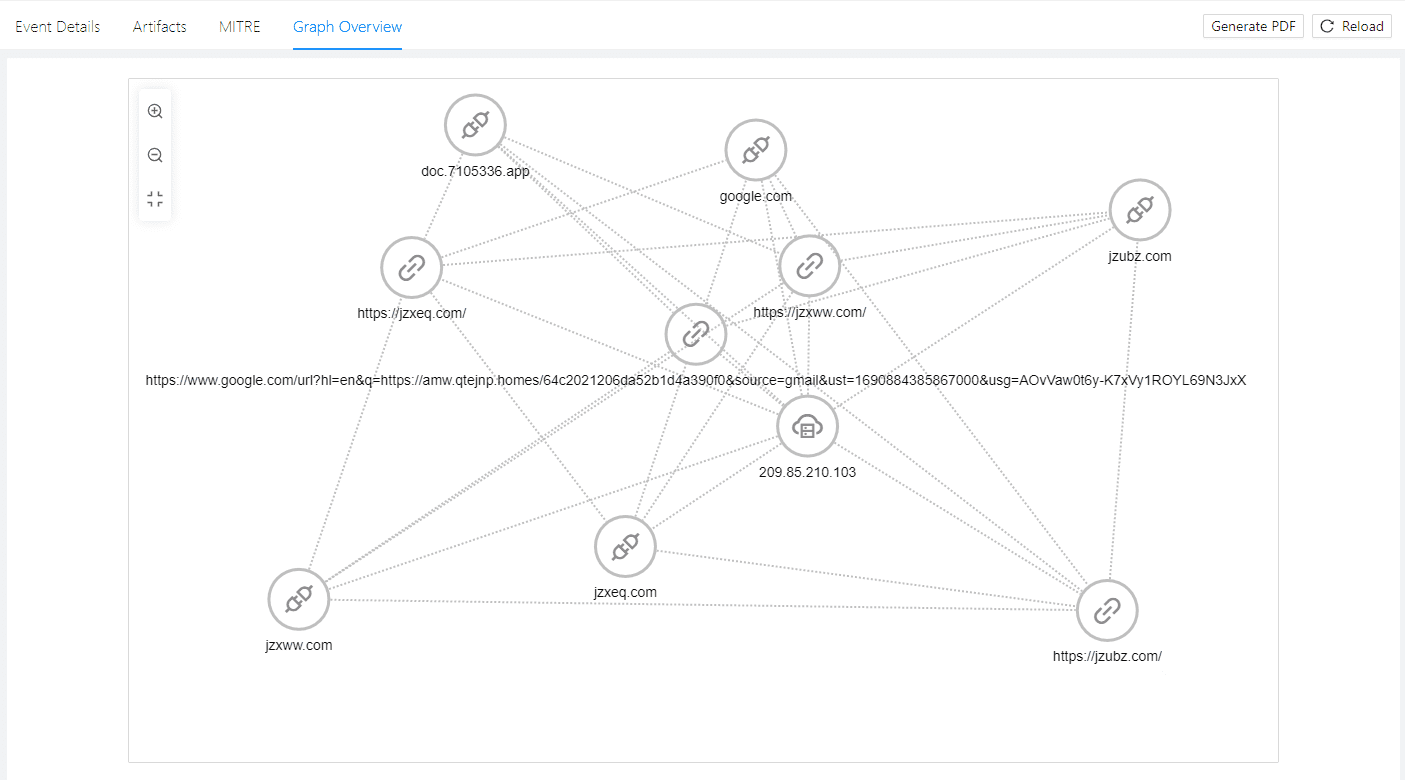
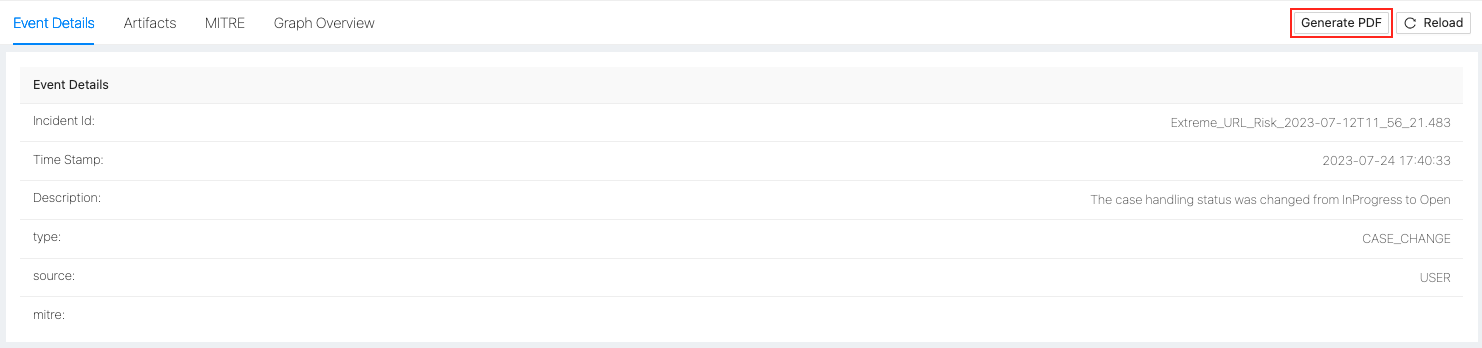
Cases are made up of events. You use events to understand what happened for each action of a playbook. For example:
What was the trigger that started the playbook?
Who responded to a prompt action and what was their response?
When you open a case, a timeline of all the events is on the left. For larger cases, you can scroll through the timeline. You can find specific case events by using the search filters at the top of Event Details.
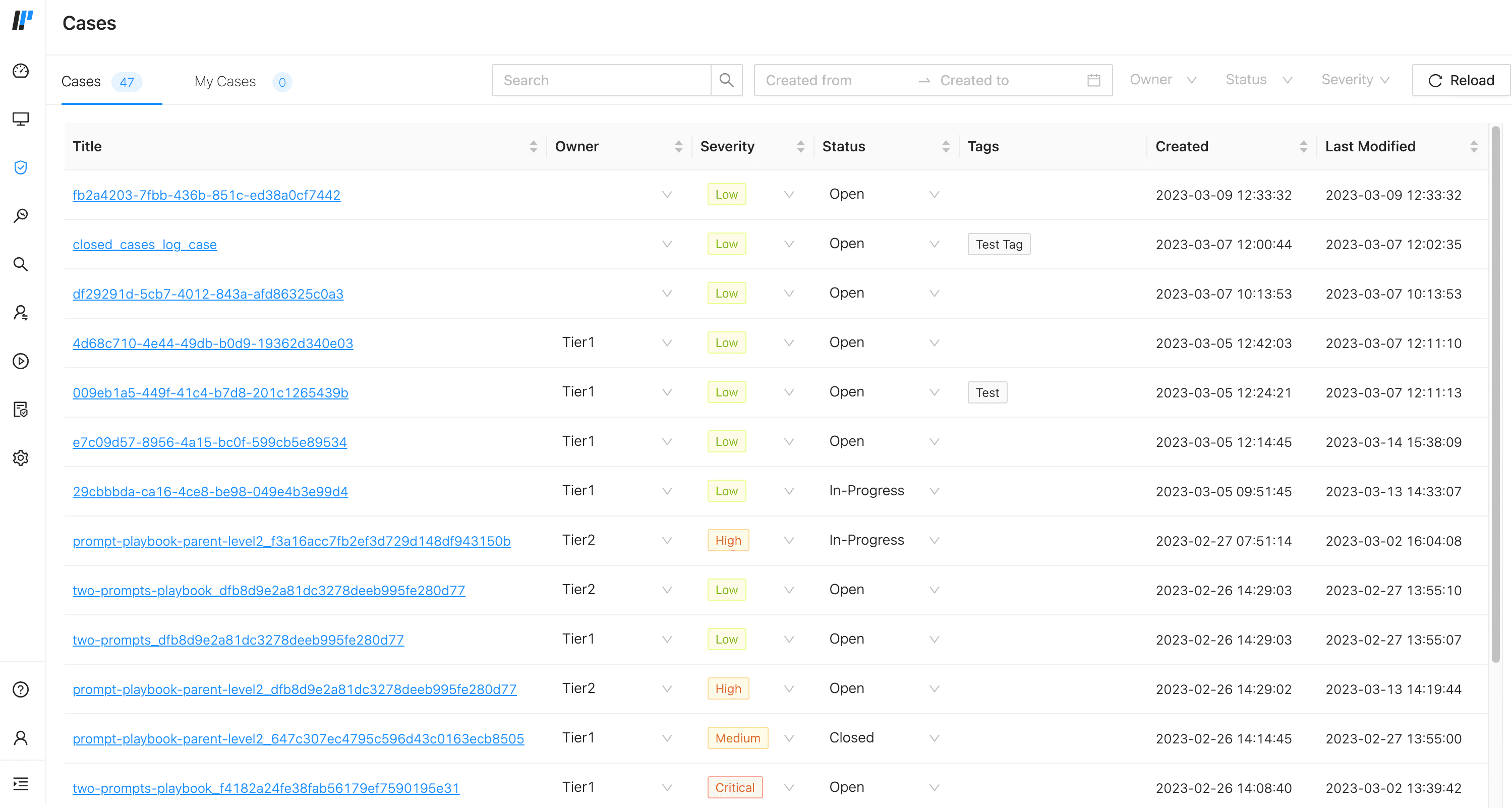
Cases List
Click on an event in the case, and the event’s details are listed on the right. Event details are the playbook’s action data. You can use event details as an audit log.
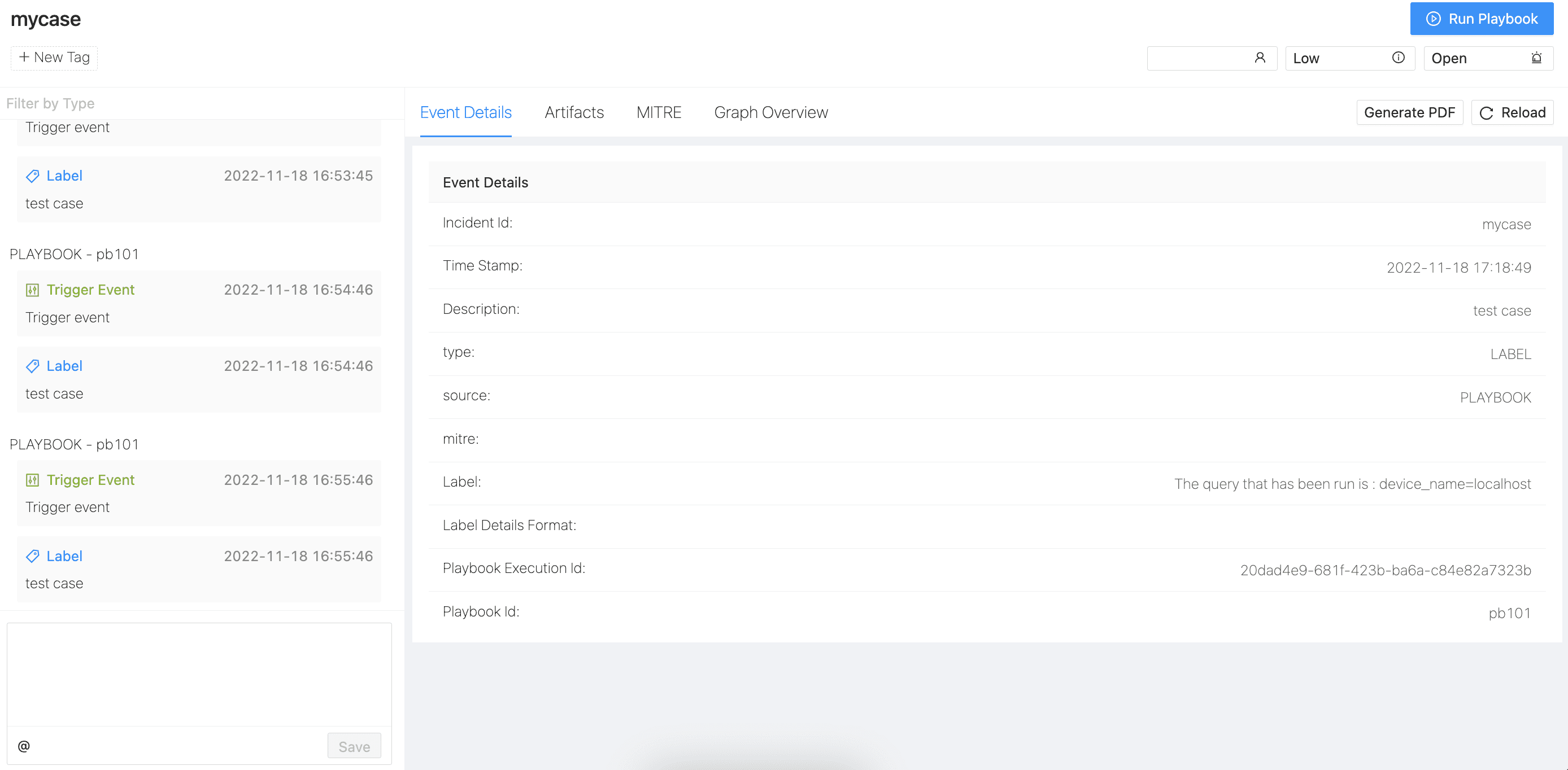
Cases Example
Cases have owners, the individual who is managing the case. You can add an owner to a case or change the owner to someone else.
Open a case
At the top of event details, use the owner field to:
Select an owner from the drop-down.
Change the owner to a new one from the drop-down.
A new event is added to the case detailing who the owner is or who the owner is changed to.
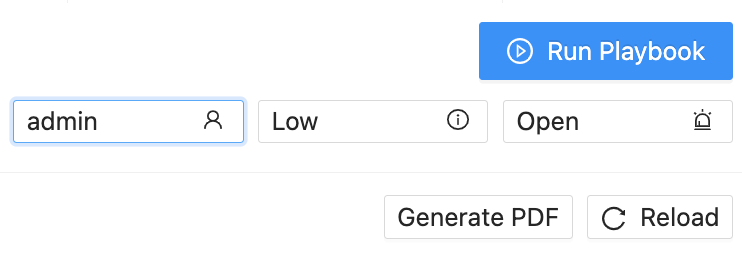
Add or change case owner
You can add tags to cases to help you group cases or find specific cases according to meaningful keywords. You add tags directly to an individual case.
Open a case
At the top of the case timeline, click + New Tag.
Enter the tag name
Click Enter.
The tag is added to the case. The case list also contains case tags; you can’t use the column to sort the list but can see the case’s tags.
When a playbook runs, the external references or resources it uses or accesses are termed artifacts. They are automatically added to the relevant case event when the playbook runs. You can also manually add an artifact to an event if you need to. Artifacts are grouped into the following out-of-the-box types:
Domain
File
Generic Text
Host
IP Address
Hash values
Open the relevant case.
Select or click on an event in the timeline.
Click Artifacts at the top.
You can use the Artifacts column headers to sort the artifacts in ascending or descending order.
Open the relevant case.
Select or click on an event in the timeline.
Click Artifacts at the top.
Next to the search field, click Add Artifact.
Select a type. The type you select determines what happens next.
Add the relevant data and external reference or file.
Click Save when you are done.
If you want to add an artifact that does not fall under the out-of-the-box types, you can add your own.
Open a relevant case
Click on an event in the timeline
Next to the search field, click Add Artifact.
In Add Artifact, go to Add New Artifact Type.
Enter the type’s name.
Click Add.
The new type is added to the list.
You can run SOAR playbooks directly from a case. You can also run a playbook using one of the case’s artifacts. When you run a playbook, from the case or from an artifact, it is added as an event to the case so you can view the details of the playbook’s run.
Run a playbook from a case
When you run a playbook from a case, you can search for the playbook you need or use the filters:
Tags
Category
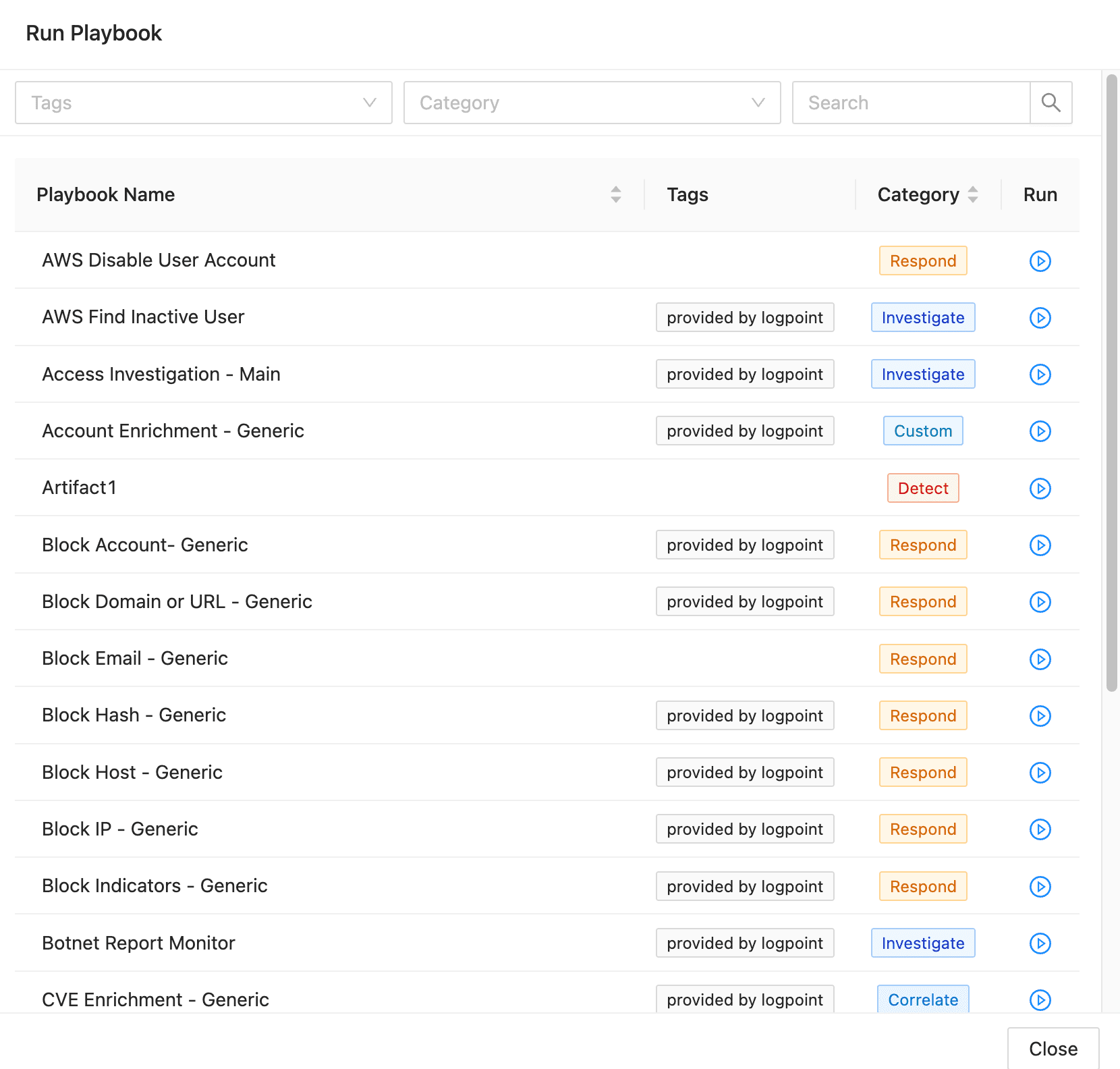
Find a playbook
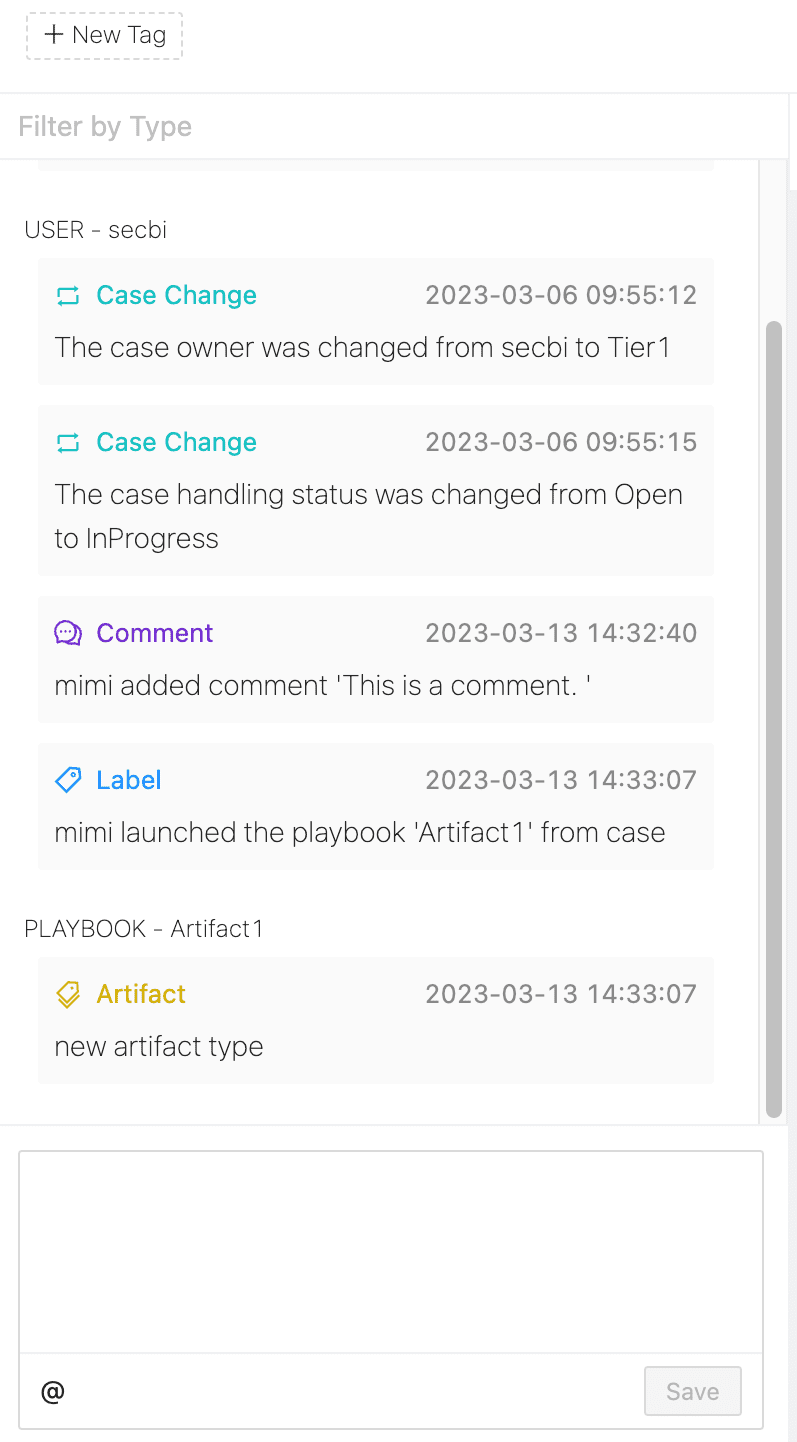
You can add comments about the case to yourself or to someone else on your team. You can also tag another user in the comment.
Case comments are at the bottom of the case timeline. Add your comment directly and click Save. Your comment becomes part of the case timeline.
MITRE displays the details of the incidents associated with a case and their MITRE tactics and techniques. To learn more about Logpoint MITRE ATT&CK Coverage, go to MITRE.
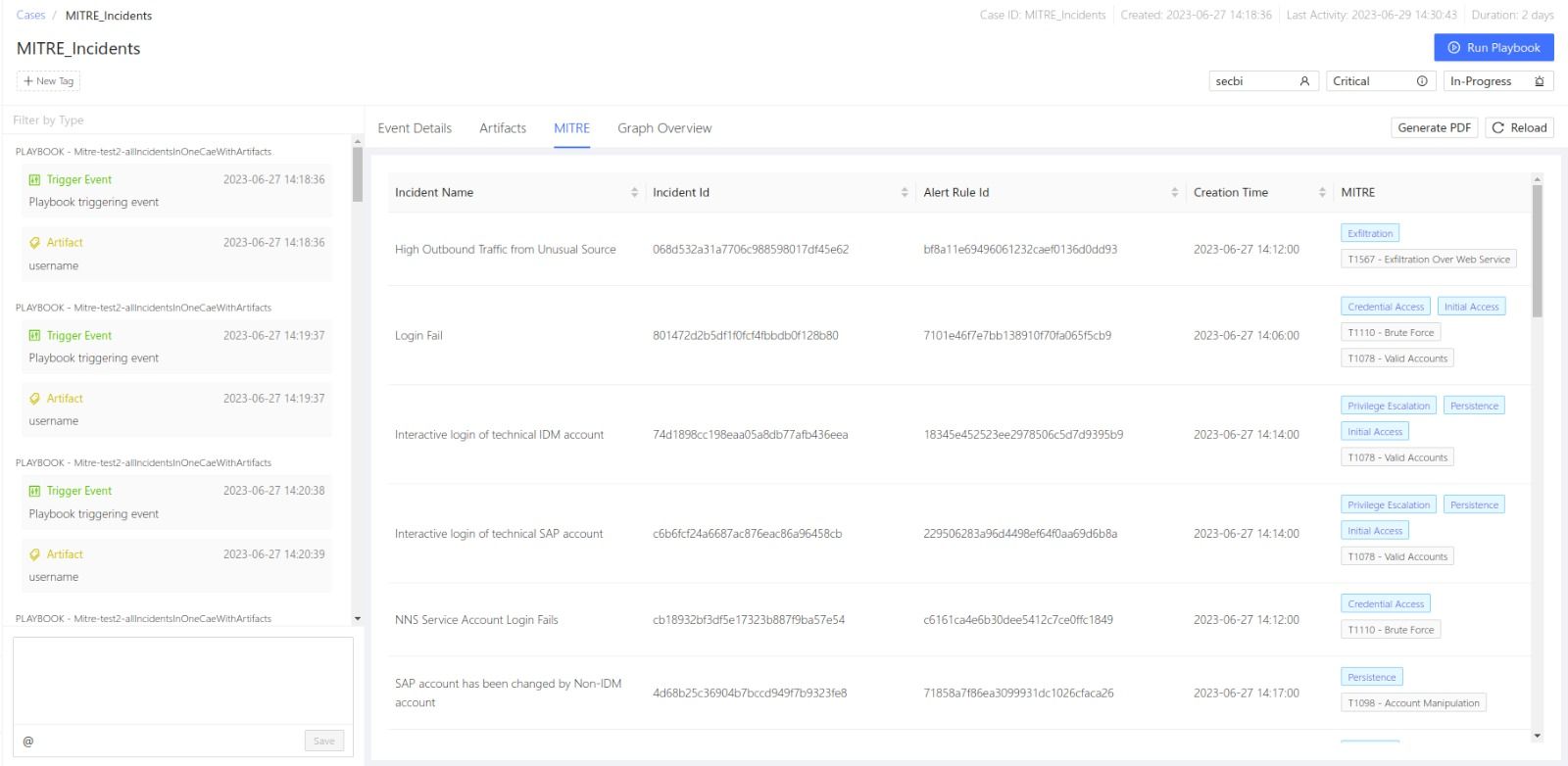
Mitre